

Add contacts
Add one person at a time, and let myproducer link people who already have an account.
Your contacts are the people you hire. Adding someone doesn't send them anything. They only hear from you when you invite them to a project.
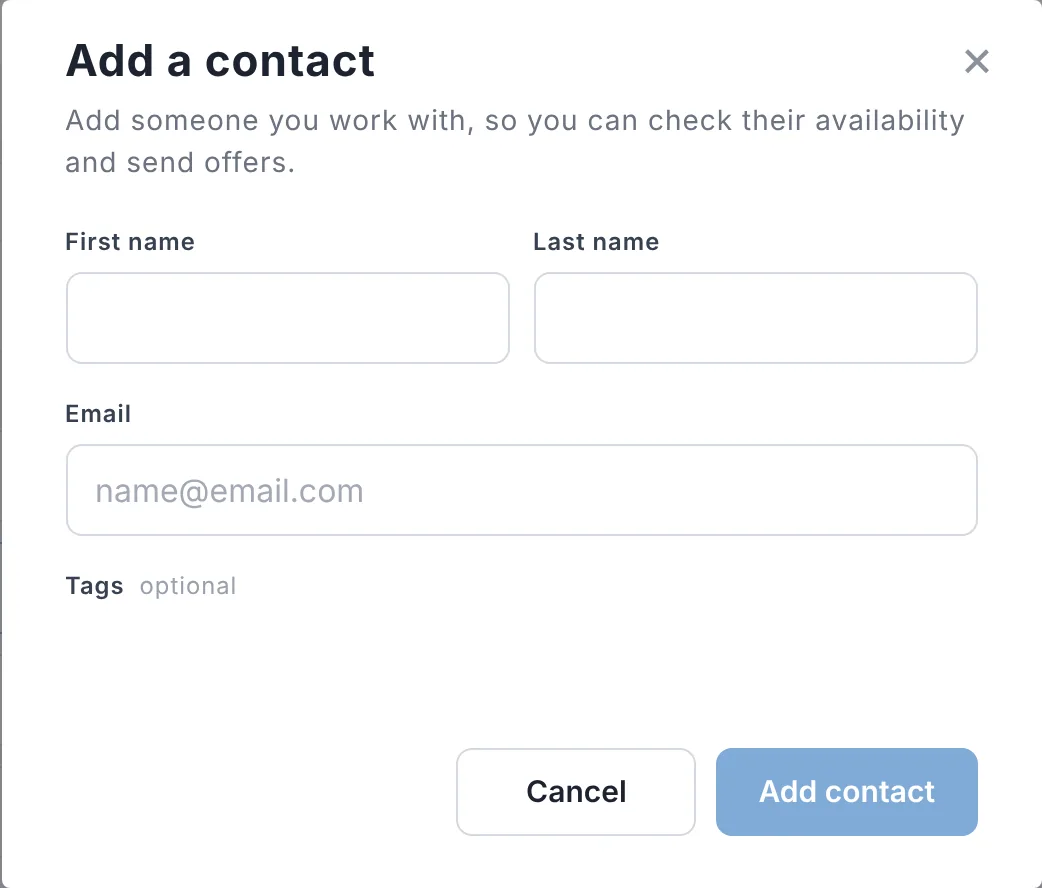
Add one person
- Go to Contacts and choose Contact.
- Enter their first name, last name and email.
- Add tags if you like (for example Editors or LA). More about tags
- Choose Add contact.
To add their role (like Director of Photography), choose + Add role next to their name in the list.
Suggestions while you type
As you type a name or email, myproducer shows matches so you don't add someone twice:
- In your contacts: this person is already one of your contacts.
- On myproducer: someone already has an account with the email you typed. Choose them and they're linked to their existing account, with their name filled in.
People who aren't in your contacts only show up when you type their full email address, so nobody can browse who's on myproducer.
Adding lots of people
Use Import to bring in your Google contacts or a spreadsheet. Import contacts
Removing a contact
Hover over the person and choose the trash can, then Delete contact. You can add them back any time, and their history on past projects stays.
Tip: You can't add yourself, and if someone's already in your contacts you'll see "This person is already in your contacts."
Updated October 2026. Something not right? Tell us.