

Send an offer
Send the rate, dates and expenses. When they accept, they're hired and the cost goes on your budget.
You can send an offer after an availability check, after a hold, or straight away.
Send an offer
- On the project, either choose + New Offer in the role, or open someone's page with View and choose Send offer.
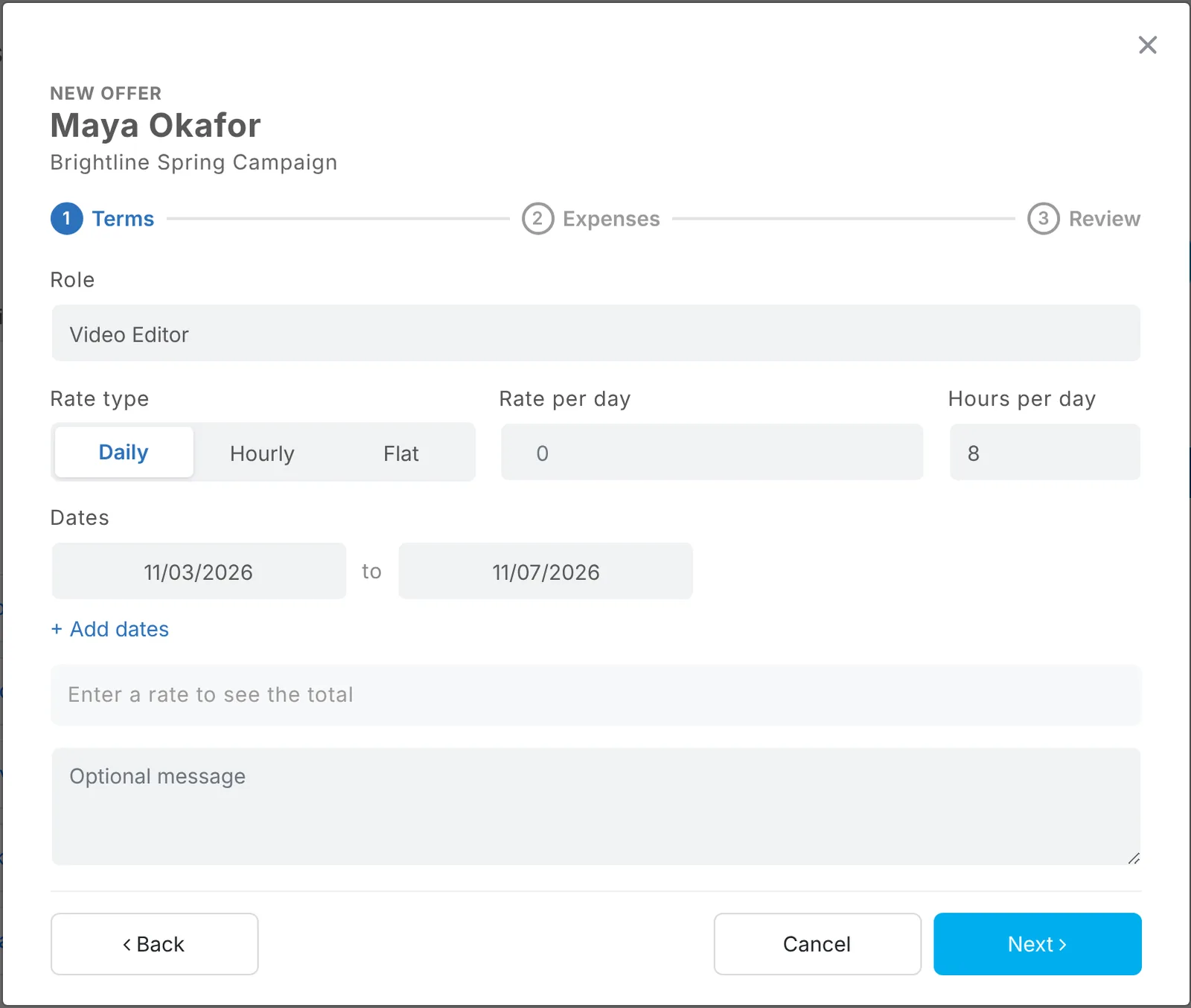
- Terms:
- Rate type: Daily, Hourly or Flat
- Rate and, for daily or hourly rates, hours per day (8 unless you change it)
- Dates: one or more date ranges
- An optional message
- Expenses (optional): add things like kit rental, mileage or travel days. Each has a cost and a quantity.
- Review the total and send.
How the total is worked out
| Rate type | Total |
|---|---|
| Flat | The rate |
| Daily | Rate × number of days |
| Hourly | Rate × hours per day × number of days |
Expenses are added on top. Days are counted across all your date ranges, including the first and last day.
What they get
An email that they've got an offer, with View full offer. No account needed. They see every detail and choose Accept offer or Decline.
When they accept, they show as Hired and the offer is added to the project's budget committed. Budget and export
Tip: Waiting on an answer? Choose Send reminder on their page to send them a nudge right away.
Updated October 2026. Something not right? Tell us.